


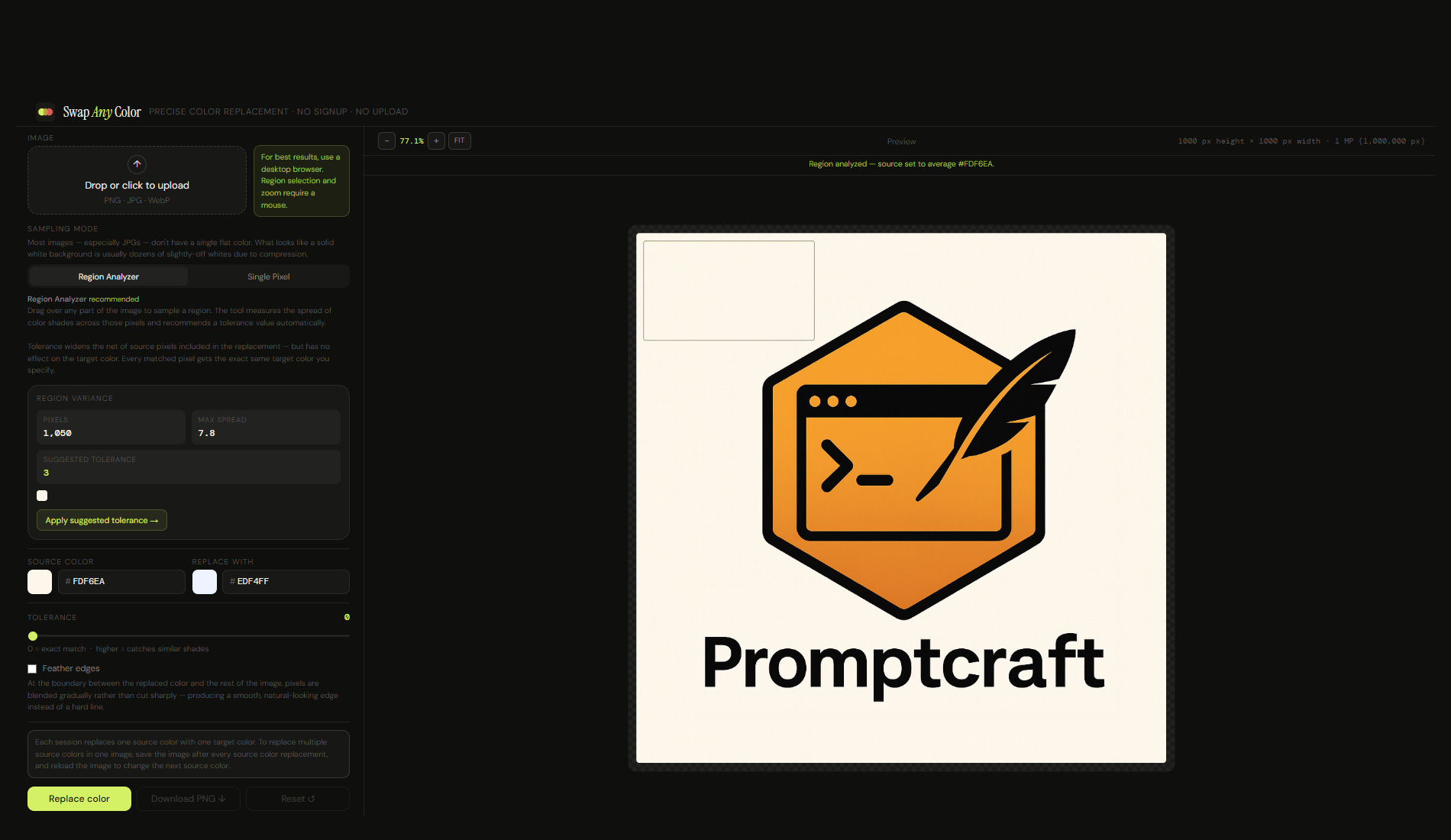
I had a logo.
Beige background. Needed it blue.
I use AI to generate images fairly regularly. They’re not always perfect — and for most small fixes, I use Microsoft Paint. Resizing. Moving artefacts around. Basic stuff.
But Paint is terrible at color replacement. It works pixel by pixel, in contiguous blocks only. The moment the color you want to replace appears in multiple disconnected areas — which is almost always — you’re hunting for every instance manually and filling them one by one.
So I looked for other tools.
Some wanted me to adjust hue and saturation. Not what I wanted. All I wanted was a specific source hex code replaced with a specific target hex code. Precise input, precise output. No approximation.
Others wanted me to describe what I was trying to do in plain English — to an AI — for a task that has a perfectly precise technical answer.
The rest wanted me to sign up.
And here’s the thing about signing up for a tool you’ve never used, built by a company you’ve never heard of, for a task you need to do exactly once:
You have no idea if it’s even going to work.
And you’re now on a mailing list forever.
So I built it myself.
The Problem Is Hiding in Plain Sight
Color replacement sounds like a solved problem.
It’s not — and the reason is subtle.
Every tool that exists approaches this wrong -
Paint’s contiguous fill misses disconnected regions.
Hue/saturation tools operate on the feel of a color, not its value — a blunt instrument when you want a scalpel.
GIMP has the right feature but buries it in a workflow that’s genuinely hard to navigate for this specific use case.
Online tools solve the UX but add a layer of friction — servers your file gets uploaded to, accounts you’ll forget you created, AI interfaces for a task that needs no AI.
And underneath all of it, the actual operation is simple:
Find pixels that match a color. Replace them with another color.

No server needed. No account needed. No upload needed. The browser can do this entirely on its own, in memory, without sending a single byte anywhere.
What SwapAnyColor Does
SwapAnyColor is a single HTML file.
Hosted at buildthisnextonline.github.io/swap-any-color/
Open it in a browser. Done. No install.
You upload an image — PNG, JPG, or WebP. Pick the color you want to replace. Pick the color you want instead. Click Replace.
Download the result as a lossless PNG at the original resolution.
Your image never leaves your machine. There’s no server. No account. No ads. The entire tool is ~950 lines of HTML, CSS, and JavaScript.
The Part That Took Actual Thinking
Building the tool quickly surfaced something I hadn’t considered at the start.
I assumed I wanted to replace a single hex code — one precise source color — with another.
That’s not how the real world works.
Even in a logo with what looks like a flat beige background, the actual pixel values are rarely identical across the entire area. Rendering, anti-aliasing, compression — all of these introduce variation. The background that looks uniformly beige is actually dozens of slightly different beiges. #E8DCC8 sitting next to #E5D9C4 sitting next to #EAE0CB. The human eye sees one color. The computer sees many.
This is true for JPGs especially. JPEG compression doesn’t preserve flat colors cleanly. What looks like a solid background is a mosaic of near-identical shades.
If you replace only the exact source hex at zero tolerance, you’ll miss everything adjacent to it. The result looks patchy. Or nothing changes at all.
This is what led to the Region Analyzer.
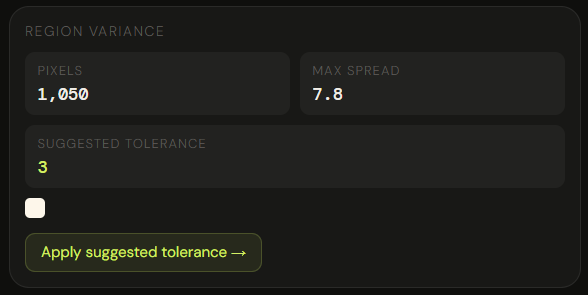
Drag a selection box over any part of the image. The tool samples every pixel in that region, computes the average color and the maximum spread between pixels, and recommends a tolerance value that covers the full range — with a 20% buffer.
One click to apply. Then replace.
The math behind it:
RGB color has three channels — Red, Green, Blue — each ranging from 0 to 255. Color distance is calculated as 3D Euclidean distance:
√((R₁−R₂)² + (G₁−G₂)² + (B₁−B₂)²)
The maximum possible distance is between pure black (0,0,0) and pure white (255,255,255):
√(255² + 255² + 255²) ≈ 441
So 441 is the furthest apart any two colors in RGB space can be. The tolerance slider maps 0–100 to that full range. Tolerance 100 covers the entire color space. Tolerance 5 catches only a very narrow band of nearly identical shades. The region analyzer measures the actual spread in your selected pixels and suggests the minimum value needed to catch all of them — with that 20% buffer.
It’s the difference between a tool that works in a demo and a tool that works in practice.
What the Tool Actually Looks Like
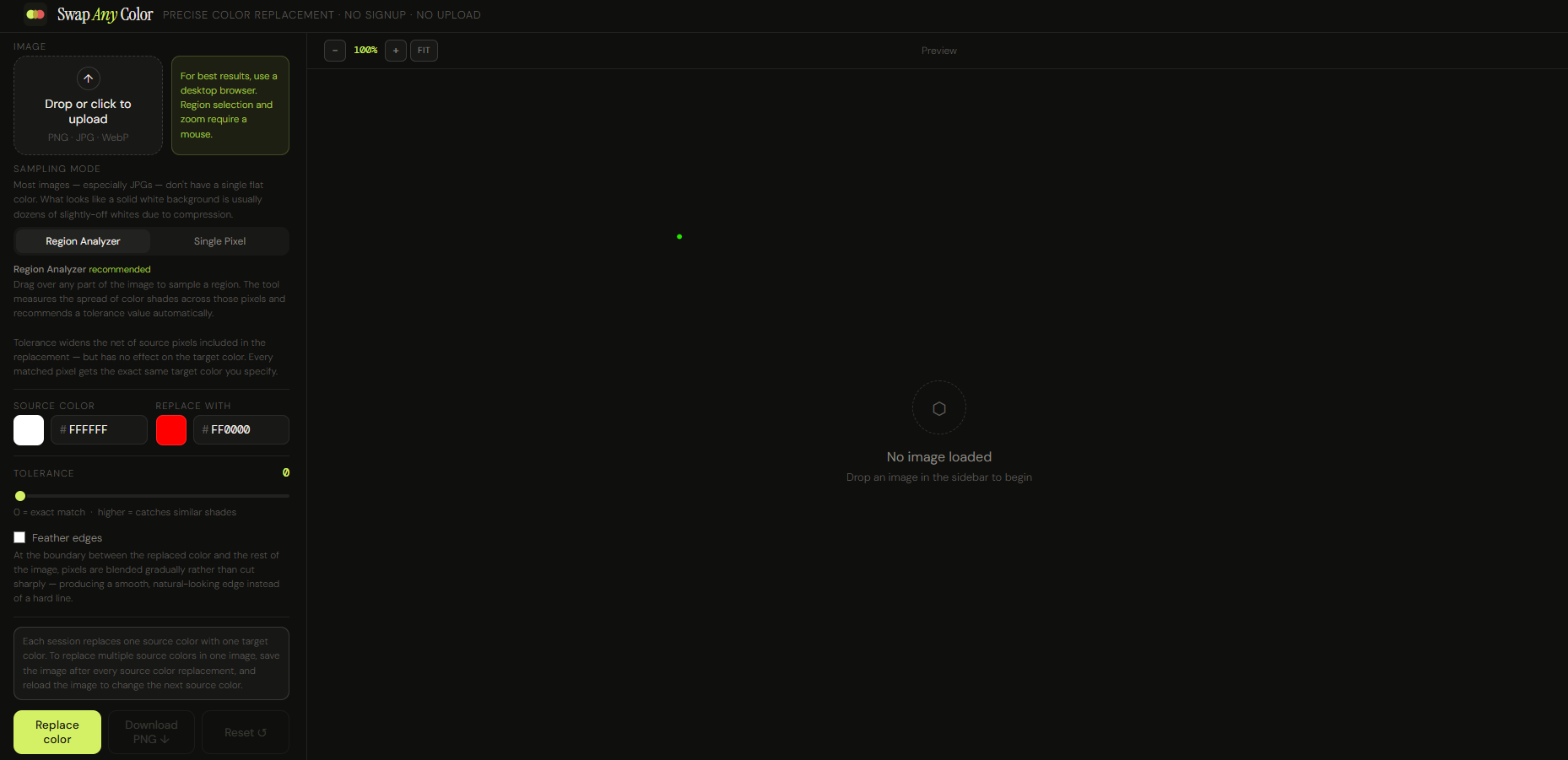
The interface has two main areas — a sidebar and a canvas.
Sidebar — everything you configure:
Upload zone
Sampling mode (Region Analyzer recommended, Single Pixel for lossless images)
Source color and target color, side by side, with hex input and a color picker
Tolerance slider (0–100)
Feather edges toggle — blends boundary pixels gradually instead of hard-cutting, for smoother results on complex edges
Replace color button
Download PNG button
Reset button — takes you back to the original if you don’t like the result
Canvas — the image itself, with:
Zoom (scroll wheel) and pan (Space + drag)
FIT button to fit the image to the available space
Before/After toggle that appears after your first replacement — press B to flip between the original and the result
Image info in the toolbar: dimensions, total pixels, and megapixels


There’s a 25MP warning for large images — not a block, just a heads-up that peak RAM usage at that size approaches ~400MB.
The One-Session Constraint
This tool does one replacement per session.
One source color → one target color.
If you want to replace multiple colors in the same image:
- replace the first
- download the result
- reload the file
- replace the next
It’s intentional — not a limitation I’m trying to hide. The tool does one thing cleanly. Keeping it stateless keeps it simple.
Why a Single HTML File
I’ve been thinking about this more lately.
There’s a class of tools that are so simple — so computationally cheap, so privacy-sensitive, so single-purpose — that wrapping them in a web app with a backend, authentication, and cloud storage is genuinely the wrong call.
Color replacement is one of them.
A static file you can open in any browser, that runs entirely locally, that you can save to your desktop and use offline forever, is actually the better product for this use case.
No maintenance burden. No server costs. No user data to protect. No GDPR headaches.
Just a file that does a thing.
Build This Next
If you’re building image tools — especially simple, single-purpose ones — ask yourself whether you actually need a backend.
The Canvas API is powerful. Browsers are powerful. Local compute is free.
The number of tools that could be a static HTML file, but aren’t, is larger than you’d think.
Sometimes the right architecture is no architecture at all.
Try SwapAnyColor — and if it solves the problem you had, share it with someone who’s been hunting through Paint trying to find every instance of a color by eye.
Build This Next.
I write about how products can be better — fixing what’s broken and imagining what’s missing.
If this made you notice something broken or missing, you can subscribe to Build This Next to receive future essays directly.
Every subscription is a vote for building better products.
And if this sparked an idea, take a few seconds to share it — it might help someone else build or see products differently.